
Google Search Console is a free tool from Google that tells you how your website is doing in Google Search. It shows what people typed before they found you, which of your pages Google has added to its index, and whether anything is wrong, such as broken pages, slow mobile pages or a hack. You do not need to be technical to use it. You just need to know where to look.
Many small-business owners have never opened it, even when their web designer set it up years ago. That is a shame, because it is the only place where Google talks to you directly about your website. This guide walks you through it step by step.
What Google Search Console Is (and Is Not)
Think of it as a health report from Google about your website.
It does:
- Show the searches that brought people to your site.
- Show how many times your pages appeared on Google and how many people clicked.
- Tell you which pages are on Google and which are not, and why.
- Warn you about security problems, spam actions and mobile issues.
- Let you ask Google to look at a new or updated page.
It does not:
- Show what visitors do after they land on your site. That is the job of an analytics tool such as Google Analytics.
- Improve your rankings by itself. It shows problems; you still need to fix them.
- Cost anything. It is free.
It is also different from your Google Business Profile, which controls your listing on Google Maps. Our Google Business Profile guide covers that side.
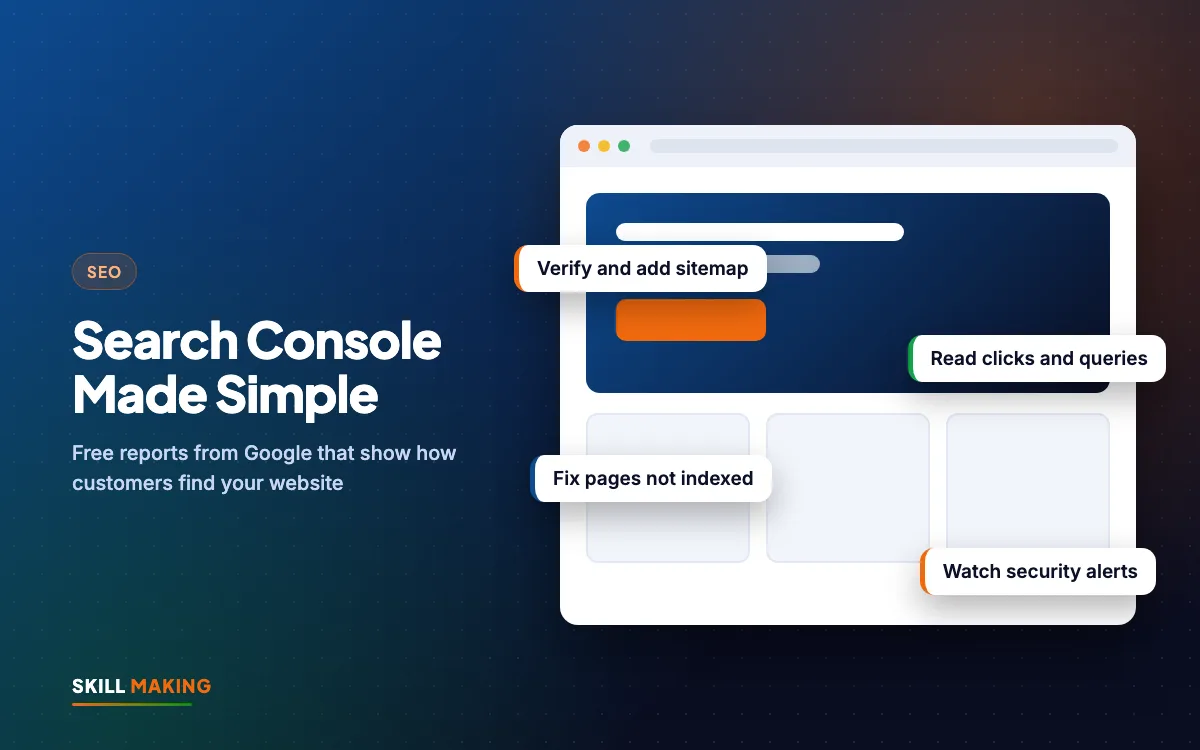
Why Our Own Website Taught Us to Love Search Console
Skill Making's old WordPress website was hacked, and hidden spam pages were added to it. After we rebuilt the site from scratch, the old spam addresses did not vanish from Google overnight. Google Search Console is where we watched the cleanup happen.
We used the Pages report to see which old addresses Google still knew about, submitted the new sitemap so Google could find the real pages, and used the removal and inspection tools to speed things along. Over time the junk pages dropped out and the real pages took their place. If your site has ever been hacked, our website security guide explains the full cleanup.
Step 1: Add and Verify Your Website
Before Google shows you any data, you must prove you own the website. This is called verification.
- Go to Google Search Console and sign in with a Google account that the business controls, not a freelancer's personal account.
- Click to add a property. You will see two choices:
- Domain property: covers every version of your site (with and without www, http and https). This is usually the best choice. You verify it by adding a small text record at your domain provider.
- URL prefix property: covers one exact address, such as https://www.yourbusiness.com. You can verify it with an HTML file, a tag on the home page, Google Analytics or Google Tag Manager.
- Follow the steps shown for your chosen method.
- Click Verify. Data may take a few days to appear for a new property.
Tip: once it works, add a second owner or user, such as a partner or your web designer, so you never get locked out. Keep the main ownership on the business account.
Step 2: Submit Your Sitemap
A sitemap is a file that lists the pages on your website, so Google can find them easily. Most website platforms create one automatically. It is often at an address like yourbusiness.com/sitemap.xml or yourbusiness.com/sitemap_index.xml.
- Open the Sitemaps section in the left menu.
- Type the sitemap address and click Submit.
- Check that the status says it was read successfully.
- Come back after a few days to see how many pages Google discovered from it.
If you rebuild your website, submit the new sitemap straight away. That is exactly what we did after our rebuild.
Step 3: Read the Performance Report in Plain Words
The Performance report is where most owners spend their time. Here is what the four main numbers mean:
- Impressions: how many times a link to your site appeared in someone's Google results. They may not have scrolled down to see it, but it was there.
- Clicks: how many times someone clicked through to your website.
- CTR (click-through rate): clicks divided by impressions. It tells you how tempting your result looks compared with others.
- Average position: roughly where your result appeared, on average. A lower number is higher on the page. It is an average across many searches, so treat it as a trend, not an exact rank.
Below the chart are tabs. The two most useful are:
- Queries: the actual words people searched. This is gold. You may find people searching for a service you offer but barely mention on your site.
- Pages: which of your pages get the most impressions and clicks.
Before you can get enquiries from Google, you need to appear in search first. Here is the journey that the Performance report measures the first half of:
- Searches on Google“best clinic in your town”
- Opens your websiteFast and clear on mobile
- Sees photos & reviewsTrusts you in seconds
- Taps WhatsApp or CallThe enquiry reaches you instantly
- Visits and buysAnd comes back again
Simple ways to use the Performance report
- High impressions, low clicks: your page shows up but people do not click. Improve the page title and description so they match what people searched. Our on-page SEO checklist shows how.
- Queries with a town name: if people search "plumber in Rudrapur" and you serve Rudrapur, make sure a page clearly says so.
- Position between about 8 and 20: these pages are close to the first page. Better content and internal links can help them move up.
- Compare date ranges: use the date filter to compare the last three months with the three before, rather than reacting to one bad week.
For more ideas on finding the right words, read our guide to keyword research for small businesses.
Step 4: Check the Pages (Indexing) Report
Google cannot show a page it has not added to its index. The Pages report shows how many of your pages are indexed and lists the reasons others are not.
Common reasons you will see, and what they usually mean:
- Crawled, currently not indexed: Google saw the page but chose not to add it yet. Often the page is thin or very similar to another page. Improve it.
- Discovered, currently not indexed: Google knows the page exists but has not visited it yet. This is common on new sites. Give it time and add internal links to it.
- Not found (404): the page no longer exists. Fine for deleted pages; fix it if a real page is broken or a link points to the wrong address.
- Page with redirect: the address sends visitors somewhere else. Usually fine.
- Excluded by noindex tag: someone told Google not to index this page. Check it is not one of your important pages.
- Duplicate pages: Google picked another version as the main one. Usually fine if Google chose the right one.
Not every "not indexed" page is a problem. Focus on your important pages: home, services, contact and your best articles. A sudden jump in the number of pages you never created can be a sign of hacked spam pages, as we saw on our old site.
Step 5: Use URL Inspection and Request Indexing
The search bar at the top of Google Search Console is the URL Inspection tool. Paste any address from your website into it.
It tells you:
- Whether the page is on Google.
- When Google last crawled it.
- Whether it is mobile-friendly and has any problems Google detected.
If you have just published a new page or made a big update:
- Paste the page address into URL Inspection.
- Click Test live URL to check Google can reach it.
- Click Request indexing.
This asks Google to look at the page sooner. It does not guarantee the page will be indexed or ranked, and pressing it many times does not help. Use it for new and important pages, not for every small edit.
Step 6: Watch Security Issues and Manual Actions
Two small reports in the left menu matter more than their size suggests.
- Security issues: Google lists problems such as hacked content, malware or pages that trick visitors. If anything appears here, act quickly, because Google may warn people before they visit your site.
- Manual actions: shows if a person at Google has taken action against your site for breaking Google's spam policies. Most honest small businesses will never see one.
Both should say no issues detected. If something appears, fix the cause, then use the request review option inside that report to tell Google it is fixed.
Also make sure Search Console email alerts go to an inbox you actually read. Many owners miss warnings because the account was set up with an old email address.
Step 7: Understand Core Web Vitals
The Core Web Vitals report shows how real visitors experience the speed and stability of your pages, grouped as Good, Needs improvement or Poor, for mobile and desktop separately.
In plain words, it looks at three things:
- Loading: how quickly the main content appears.
- Responsiveness: how quickly the page reacts when someone taps a button.
- Visual stability: whether things jump around while the page loads.
Small sites with few visitors may see "not enough data", which is normal. If pages show as Poor, the usual causes are large images, heavy sliders, too many plugins and slow hosting. Our guide on website speed and enquiries explains how to check and fix them.
As problems get fixed and good pages get indexed, many sites see their search visibility improve steadily over time. Here is an illustration of that kind of gradual growth:
Illustration only, not a promise. Real results depend on your town, competition, offer and how quickly you reply to enquiries.
A Simple Monthly Search Console Routine
You do not need to check Google Search Console every day. Fifteen to twenty minutes once a month is enough for most small businesses. Put a reminder in your calendar.
- Check the overview for any new warnings or messages.
- Security issues and Manual actions: confirm both say no issues.
- Performance: compare the last 28 days or 3 months with the previous period. Note your top queries and pages.
- Find one opportunity: a query with many impressions but few clicks, or a service people search that you do not explain well. Improve one page.
- Pages report: check that your important pages are indexed and there is no sudden jump in strange pages.
- Sitemaps: confirm the sitemap still reads successfully.
- Core Web Vitals: note any pages marked Poor and pass them to your web designer.
- Inspect and request indexing for any new pages you published this month.
Write down two or three numbers each month, such as clicks and impressions, in a simple sheet. Over a year you will clearly see whether your SEO work is helping. Our article on how long SEO takes explains what kind of timeline is realistic.
Common Beginner Mistakes
- Setting it up under a freelancer's account and losing access when they leave.
- Panicking over one bad week. Search traffic goes up and down. Look at trends over months.
- Trying to make every page indexed. Tag pages, thin pages and old duplicates do not need to be on Google.
- Ignoring warning emails because they went to an old inbox.
- Forgetting to submit the new sitemap after a redesign. If you are planning one, use our website redesign checklist.
- Requesting indexing again and again for the same page. Once is enough.
Not sure your setup is right, or the reports are confusing? We can check it for you.
How Skill Making Uses Google Search Console for Clients
Every website we build is connected to Google Search Console at launch, with the sitemap submitted and ownership in the client's own Google account. Even our Starter package (₹14,999, one-time, plus GST) includes basic SEO, a sitemap and Search Console setup. The Business package (₹29,999) adds on-page SEO and Google Business Profile setup. See the packages.
For ongoing growth, our SEO service uses Search Console data every month to choose which pages to improve and which new pages to create. For businesses in Florida and elsewhere in the USA, websites start from $300, and our Miami website design page has a cost calculator. In India we work in person around Khatima and remotely everywhere.
What to Do Next
Today, try to log in to Google Search Console. If you can, open the Performance report and look at the Queries tab for the last three months. You will probably learn something new about how customers find you. If you cannot log in, or nobody knows who set it up, that is the first thing to fix.
If you would like a second pair of eyes, ask us for a free website audit. We will check your Search Console setup, indexing and common problems, and explain what to do in simple words. Building a new site? Get a free website plan and Search Console will be set up properly from day one.