Welcome to Your WordPress Journey!
Hello there! I am so thrilled that you’ve decided to take the first step toward building your own piece of the internet. If you are feeling a bit overwhelmed, take a deep breath—you are exactly where you need to be. Whether you are a student looking to build a portfolio, a freelancer showcasing your skills, or a small business owner testing the waters, learning how to use WordPress for beginners for free is one of the most empowering skills you can acquire in 2026.
At Skill Making, we believe that everyone deserves a professional digital foundation. I’ve spent years teaching people just like you how to navigate the world of web design, and I can promise you one thing: if you can send an email or write a document, you can master WordPress.
Can You Really Use WordPress for Free?
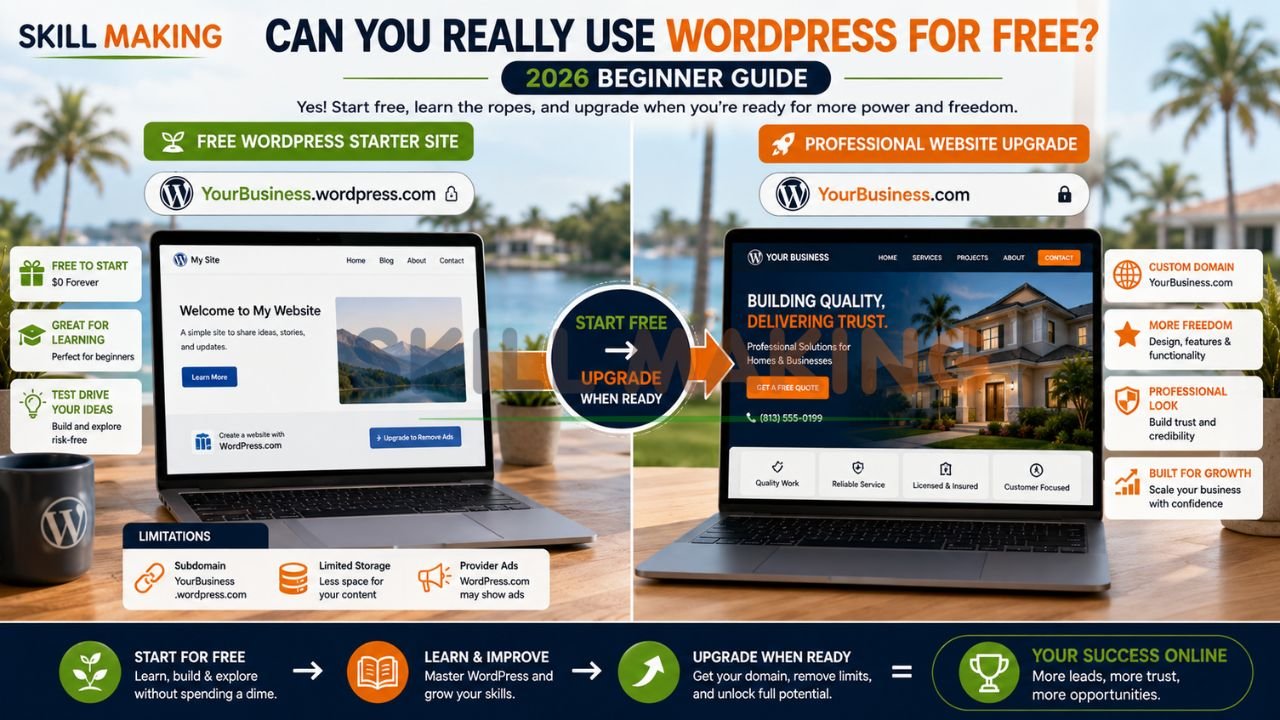
The short answer is: Yes! But it’s important to have realistic expectations. Think of a free WordPress site like a “test drive.” You can learn the controls, build your pages, and see your vision come to life without spending a single penny.
👉 Get a Professional WordPress Website Designed to Generate Real Leads for Your Business – 📲 WhatsApp Us Today
However, “free” usually comes with some “stay-at-home” rules. You might not have your own custom domain (like YourName.com), and instead use a subdomain (like YourName.wordpress.com). You may also have limited storage or see small ads from the provider. But don’t let that stop you! Starting for free is the absolute best way to learn the ropes before you invest in a professional, custom-built site.
WordPress.com vs. WordPress.org: Which One is Truly Free?
This is the number one question every beginner asks. Imagine you want to plant a garden.
- WordPress.com is like a community garden. They give you the plot, the tools, and the soil for free, but they have rules about what you can plant and how high your fence can be.
- WordPress.org is like owning your own land. You have to buy the “land” (hosting) and the “address” (domain), but you can do whatever you want with it.
For this guide on how to use WordPress for beginners for free, we will focus on the most accessible ways to get started without a credit card.
| Feature | WordPress.com (Free Plan) | WordPress.org (Self-Hosted) |
|---|---|---|
| Cost | $0 Forever | Software is free, but hosting costs money |
| Setup | 5 Minutes | Requires technical setup |
| Domain | Subdomain (sitename.wordpress.com) | Custom Domain (sitename.com) |
| Ads | Providers may show ads | You have 100% control over ads |
| Best For | Beginners, Bloggers, Students | Businesses, Professional Portfolios |
Step-by-Step: How to Create Your Free WordPress Website
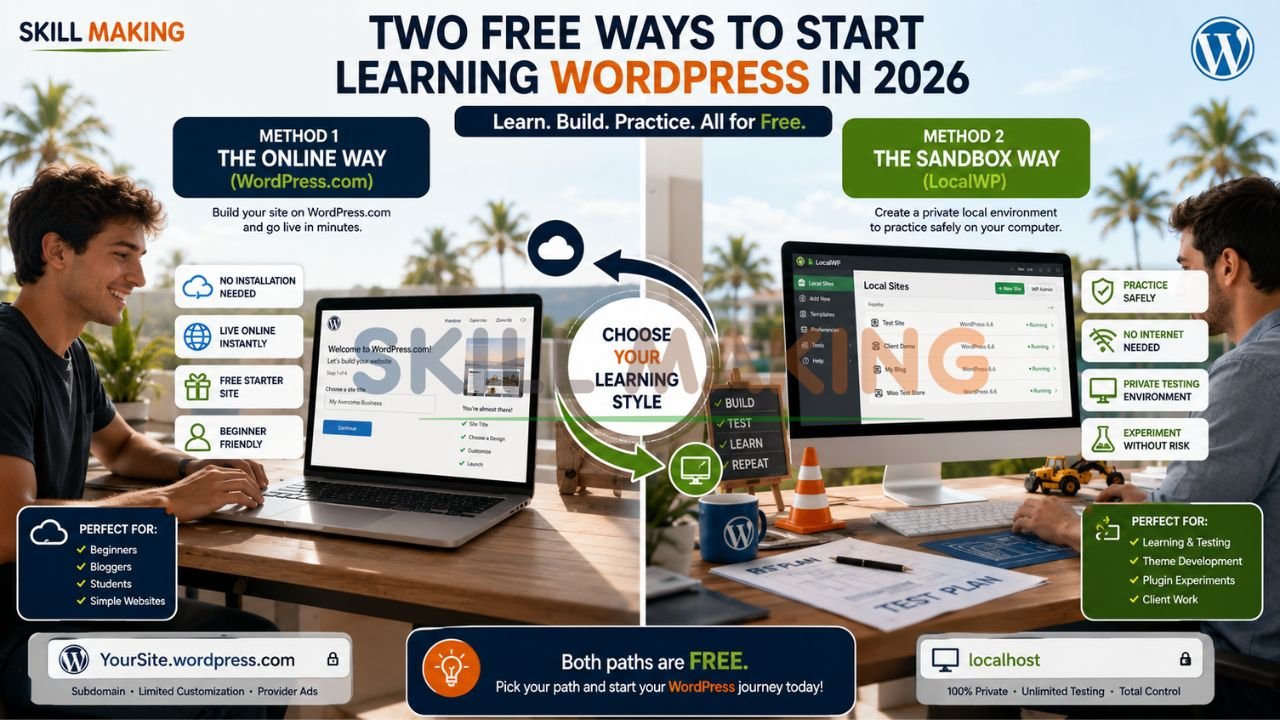
There are two primary ways to start for free in 2026. Let’s walk through both so you can choose the one that fits your style.
👉 Let Skill Making Build a High-Converting WordPress Website That Brings More Customers – 📲 Start Chat Now
Method 1: The Online Way (WordPress.com)
This is the easiest “plug-and-play” method.
- Visit WordPress.com: Click the “Get Started” button.
- Create Your Account: Use your email address or continue with Google.
- Choose Your Domain: Type in your desired name. Look for the option that says “Free” with a wordpress.com ending.
- Select the Free Plan: You will see many paid options. Always look for the small link that says “start with a free site.”
- Pick Your Goals: WordPress will ask what you want to do (write, sell, promote). This helps them suggest the right tools for you.
Method 2: The “Sandbox” Way (LocalWP)
If you want to practice building a site on your own computer without it being live on the internet yet, this is a fantastic tool used by professionals.
- Download LocalWP: It’s a free software for Mac and Windows.
- Install & Open: Follow the simple installation prompts.
- Click “Create a New Site”: Give your site a name, click “Continue,” and set your username and password.
- Access Your Site: Click “Admin” to see your WordPress dashboard. This site lives on your computer, so it’s 100% private while you learn!
A Beginner’s Tour of the WordPress Dashboard
Welcome to the “Cockpit”! The WordPress Dashboard is where all the magic happens. On the left side, you’ll see a black menu. Let’s look at the most important “buttons”:
- Posts: This is for your blog articles or news updates. Posts are “timely” and appear in reverse chronological order.
- Media: This is your digital library. Every photo, video, or PDF you upload lives here.
- Pages: These are for static content that doesn’t change often, like your “About Us” or “Contact” pages.
- Comments: This is where you manage the conversation with your readers.
- Appearance: This is the “Closet.” This is where you pick your “Outfit” (Theme) and customize how your site looks.
- Plugins: These are “Apps” for your website. Want a contact form? There’s a plugin for that. Want to speed up your site? There’s a plugin for that too!
- Settings: This is where you control the “Rules” of your site, like your site title and time zone.
👉 Need More Leads from Google? Get a Fast, SEO-Optimized WordPress Website Today – 📲 Contact Us on WhatsApp
How to Create Your First Page and Blog Post?
Now, let’s actually build something! WordPress uses a “Block Editor” (also called Gutenberg). Think of it like playing with LEGOs—you just stack blocks of text, images, and buttons on top of each other.
Creating a Page
- Go to Pages > Add New.
- Add a Title: Call it “Home” or “Welcome.”
- Add Blocks: Click the (+) icon to add a paragraph, an image, or a heading.
- Customize: On the right-hand sidebar, you can change colors and font sizes for each block.
- Publish: Hit the blue “Publish” button in the top right corner. Congratulations! Your page is live.
Writing a Blog Post
- Go to Posts > Add New.
- Tell a Story: Write your first update.
- Set a Featured Image: In the right sidebar, find “Featured Image.” This is the main photo that shows up at the top of your post.
- Categories: Assign a category (like “Tutorials” or “Life Updates”) so readers can find your work easily.
Best Free Themes and How to Customize Them
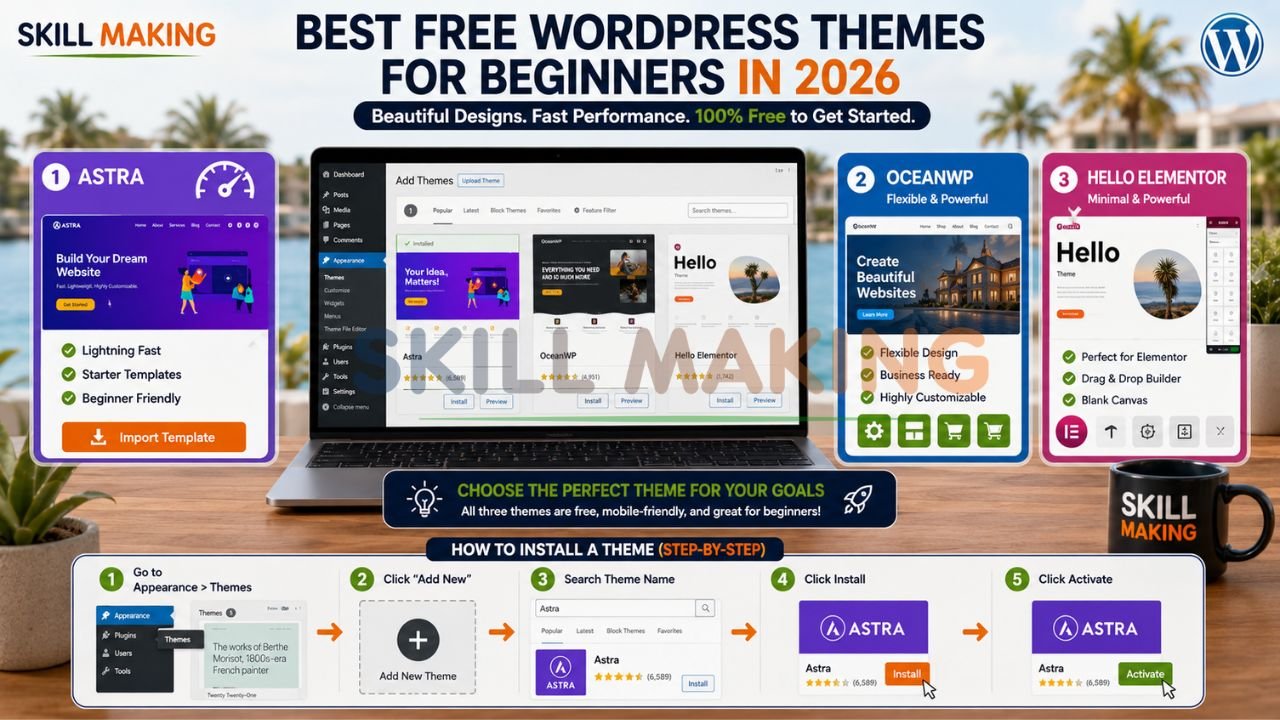
In the world of WordPress, a Theme is your website’s design template. For a free site, you want something lightweight and fast.
👉 Turn Your WordPress Website into a 24/7 Lead Generation Machine with Skill Making – 📲 Message Us Today
Top 3 Free Themes for Beginners in 2026:
- Astra: Incredibly fast and offers “Starter Templates” that you can import with one click.
- OceanWP: Very flexible and works great for small business sites.
- Hello Elementor: The perfect “blank canvas” if you want to use a drag-and-drop builder.
How to Install a Theme:
- Go to Appearance > Themes.
- Click Add New.
- Search for one of the themes above.
- Hover over the theme and click Install, then click Activate.
Must-Have Free Plugins for Beginners
Plugins give your site “Superpowers.” Even on a free setup, these are essential:
- Contact Form 7: A simple way to let people send you messages.
- Yoast SEO: Your personal coach for making sure Google can find your site.
- UpdraftPlus: Always, always have a backup! This plugin saves a copy of your site in case something goes wrong.
- Smush: Automatically shrinks your images so your site loads lightning-fast.
How to Make Your Free WordPress Site Look Professional?
Just because it’s free doesn’t mean it has to look “cheap.” Here are my expert tips for a high-end feel:
- Use High-Quality Images: Avoid blurry photos. Use free sites like Unsplash or Pexels for stunning, professional photography.
- Limit Your Colors: Stick to 2 or 3 main colors. A clean, white background with one “pop” color (like navy blue) always looks sophisticated.
- Consistent Fonts: Don’t use five different fonts. Pick one for headings and one for body text.
- Whitespace is Your Friend: Don’t clutter your pages. Give your text room to “breathe” so it’s easy to read.
👉 Get a Mobile-Friendly WordPress Website That Helps You Win More Local Customers – 📲 Connect on WhatsApp
Free WordPress SEO Tips for Beginners
SEO (Search Engine Optimization) sounds scary, but it’s just about being organized so Google knows what your site is about.
- Permalinks: Go to Settings > Permalinks and select “Post Name.” This makes your links look like yoursite.com/my-first-post instead of a bunch of random numbers.
- Alt Text: Whenever you upload a photo, fill out the “Alt Text” description. This helps visually impaired users and helps Google understand the image.
- Keywords: Use your main topic (like “beginner woodturning tips”) in your title and first paragraph.
Limitations of Free WordPress Websites
I want to be 100% honest with you. While free sites are amazing for learning, they have ceilings:
- Monetization: Most free plans don’t let you run your own ads or have a full e-commerce shop.
- Storage: You might run out of space if you upload too many high-res videos.
- Professionalism: For a serious business, a subdomain (like .wordpress.com) can make you look less established to clients.
- SEO Ceiling: Professional agencies like Skill Making can achieve 3.8x growth in traffic using advanced tools that aren’t available on free plans.
From “Free” to “Professional” with Skill Making
There comes a point in every creator’s journey where the “Free” version isn’t enough anymore. Maybe you’ve started a landscaping business in Tampa and need a site that actually generates leads, or you’re an electrician in Orlando who needs a “Click-to-Call” button that works perfectly on every smartphone.
That is where we come in. At Skill Making, we don’t just build “pretty” websites; we build lead-generation machines. Our clients see an average of 312% increase in qualified leads within six months because we understand the technical “under-the-hood” magic that free builders just can’t offer.
When you are ready to stop “testing” and start “growing,” visit our Professional Website Design Page to see how we can transform your digital presence.
30-Day Free WordPress Learning Action Plan
Follow this simple guide to go from zero to hero in one month:
Week 1: Foundations
- Day 1-3: Set up your free site and explore every button in the dashboard.
- Day 4-7: Choose a theme and customize your site’s identity (Title & Tagline).
Week 2: Content Creation
- Day 8-10: Create your “Home,” “About,” and “Contact” pages.
- Day 11-14: Write your first two blog posts.
👉 Stop Losing Customers to Competitors with Better Websites & SEO – 📲 Talk to Experts Now
Week 3: Functionality
- Day 15-18: Install essential plugins (SEO, Security, Backup).
- Day 19-21: Practice adding different “Blocks” like galleries and buttons.
Week 4: Polishing & SEO
- Day 22-25: Optimize your images and check your site on your phone.
- Day 26-28: Share your site with friends for feedback.
- Day 29-30: Celebrate! You’ve built a website!
Common Beginner Mistakes (And How to Avoid Them)
- Ignoring Updates: WordPress regularly releases security updates. Always click “Update” when you see a notification.
- Too Many Plugins: Having 50 plugins will slow your site to a crawl. Only keep what you actually use.
- Weak Passwords: Your website is your digital home. Use a strong password and don’t share it!
- No Backups: Technology happens. Always have a recent backup using a plugin like UpdraftPlus.
Your Future Starts Today!
You did it! You’ve reached the end of this guide, and you now have the roadmap to learn how to use WordPress for beginners for free. Remember, every expert was once a beginner. Don’t be afraid to click buttons, try new designs, and make mistakes—that is how the best learning happens.
The internet is a vast world of opportunity, and you just took your first step into it. We are so proud of you!
Ready to take your business to the next level? If you are ready for a professional, high-converting website that brings in real customers, the team at Skill Making is here to help. We specialize in turning your vision into a powerful business asset.
- Visit Us: https://skillmaking.com/website-design/
- WhatsApp Us Now: +91-7906334941
Let’s build something incredible together!
Helpful Resources for Your Journey:
- Learn.WordPress.org – Official, free video tutorials.
- WordPress.org Documentation – The “User Manual” for WordPress.
- Astra Starter Templates – Great free design inspiration.
- Yoast SEO Beginner Guide – Learn the basics of search rankings.
FAQs:
- Can I really create a WordPress website for free?
Yes, you can create a WordPress website for free using platforms like WordPress.com or tools like LocalWP. These options allow beginners to learn website creation without paying for hosting or a custom domain initially. - What is the best free WordPress option for beginners?
For complete beginners, WordPress.com is usually the easiest option because it offers quick setup and requires no technical knowledge. LocalWP is also a great choice for practicing privately on your computer before launching a live website. - Do I need coding skills to use WordPress?
No, WordPress is designed for non-technical users. Beginners can create pages, blog posts, menus, and designs using simple drag-and-drop blocks and beginner-friendly themes without writing code. - Which free WordPress themes are best for beginners in 2026?
Popular free themes for beginners include Astra, OceanWP, and Hello Elementor. These themes are lightweight, mobile-friendly, customizable, and ideal for creating professional-looking websites. - Can a free WordPress website rank on Google?
Yes, a free WordPress website can rank on Google if it has quality content, proper SEO optimization, fast loading speed, and mobile responsiveness. However, professional SEO tools and custom domains can help improve long-term rankings even more.